The Call button puts a lead’s number into your personal ICTContact campaign. ICTContact dials the customer and puts the call through to you as soon as they answer. There’s a one-time setup for each user, then calling is a single click.
One-time setup (administrator)
- Go to Settings, Users, and open the user.
- On the ICTContact tab, pick the user’s ICTContact extension. Without an extension, the Call button tells the user to ask for one.
- Press Set up click-to-call campaign. ICTERP creates a contact group and a permanent campaign in ICTContact just for this user, adds their extension to it and starts it.
If you’d rather share a campaign, leave the user’s campaign empty. They’ll use the default campaign from the ICTContact settings.
Get ready to take calls (agent)
ICTContact only connects calls to agents who are ready for them. Before you start calling:
- Sign in to the ICTContact agent panel with your extension.
- Choose Predictive as the dial mode and select your click-to-call campaign. Its name starts with
icterp-c2c. - Set your status to Ready.
If you press Call and no call comes through, check these three things first. Manual dial mode, the wrong campaign or a status other than Ready are the usual reasons.
Place a call
- Open a lead, opportunity or contact that has a phone number.
- Press Call. A message confirms the call is queued and shows the caller ID the customer will see.
- ICTContact dials the customer and connects the call to your extension when they pick up.
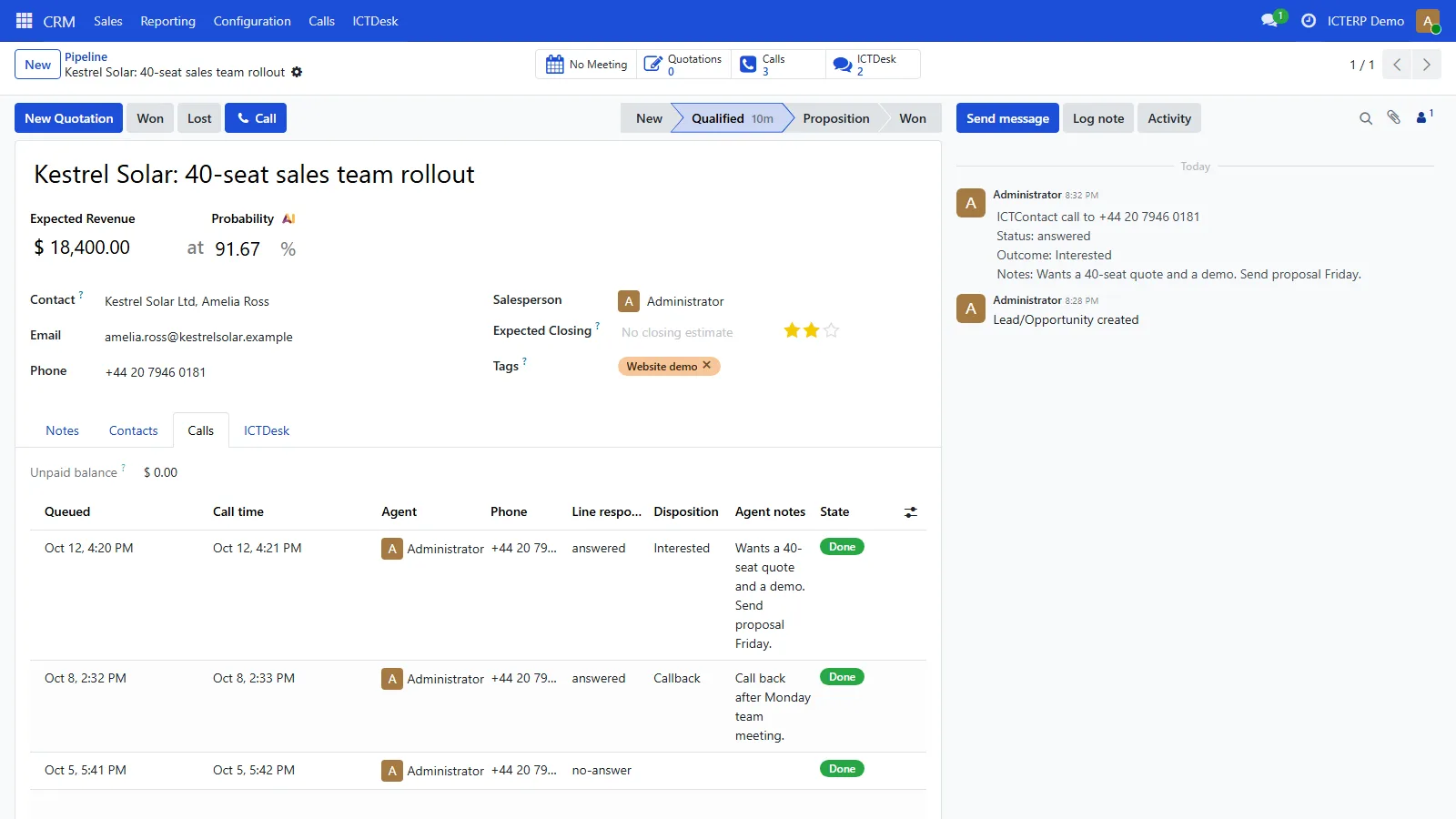
The call appears straight away on the Calls tab with the state Queued. When it finishes, the line result (answered, busy, no answer) fills in.
If a call fails right away
Right after queuing, ICTERP checks that ICTContact holds the right number for the call. If it didn’t, the call is marked Failed with “Not dialed” and you’ll see a warning. Press Call again. If it keeps happening, ask your administrator to check the campaign in ICTContact.
Next: what happens after the call.