ICTERP opens on the Home page after you sign in. It shows a tile for every app you’re allowed to use, grouped into sections such as Education, Sales and customers, Finance and operations, and People. Click a tile to open that app.
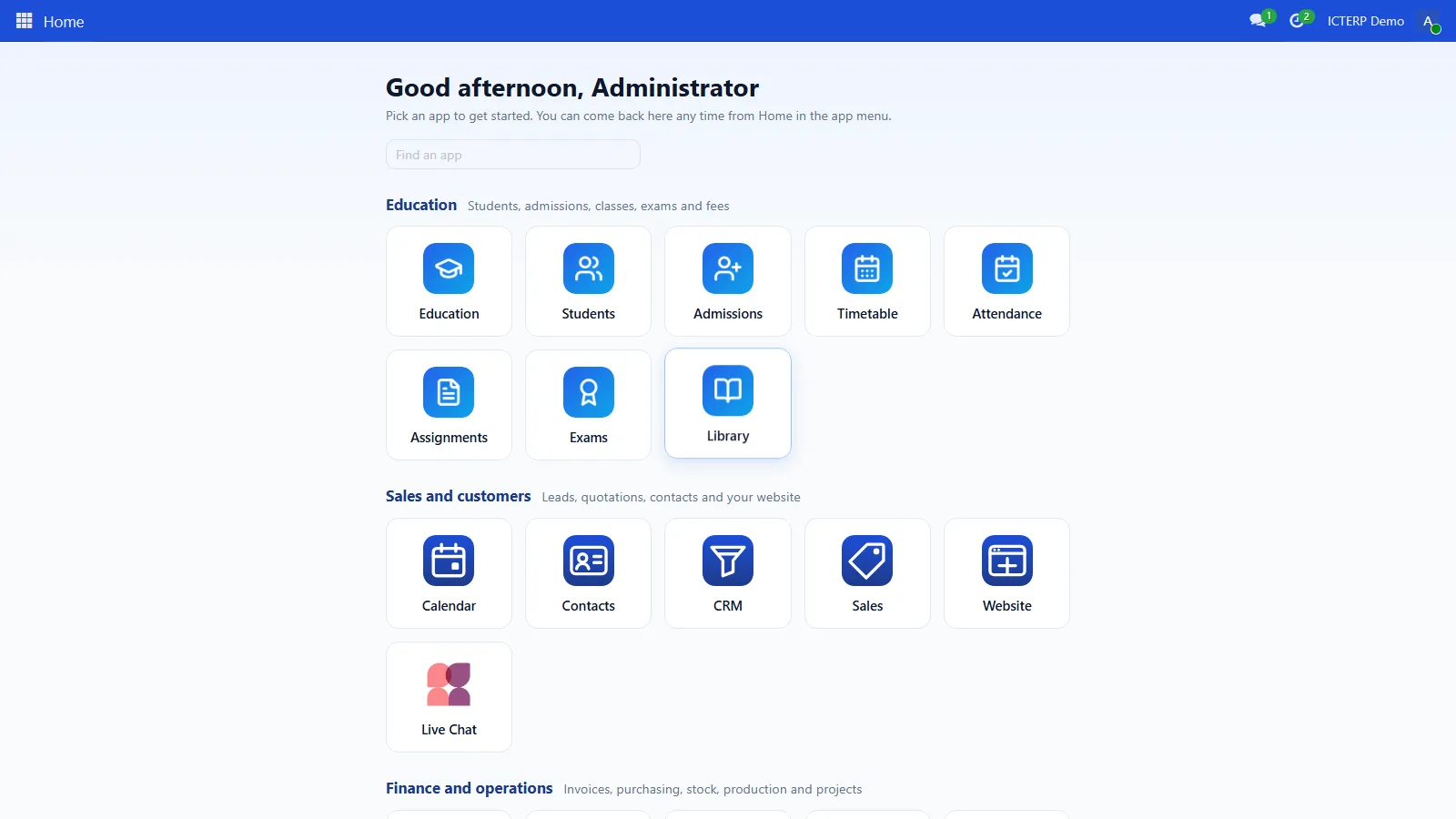
Find an app quickly
Start typing in the Find an app box. The tiles narrow down as you type, and pressing Enter opens the first match.
Get back to Home
From any screen, press the grid icon in the top left corner. Home is the first entry in the list.
Only the apps you can use
Each person sees tiles for their own apps only. A teacher who works in Education doesn’t see Payroll, and an accountant doesn’t see Admissions. Access rights decide what shows, so there’s nothing extra to set up.
Set up the Home page (administrator)
Go to Settings. The Home page block is the first one on the page.
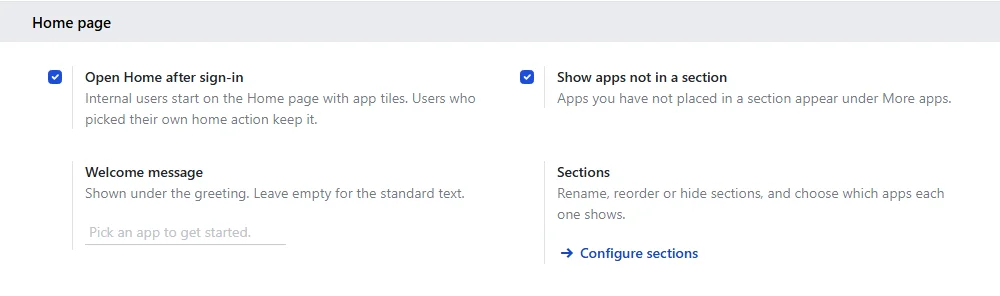
- Open Home after sign-in: on by default. Turn it off and people land on the first app instead. Anyone who picked their own start page keeps it either way.
- Show apps not in a section: apps you haven’t placed in a section appear at the bottom under More apps.
- Welcome message: your own line under the greeting, for example your school’s name or a notice for the week.
- Configure sections: rename a section, drag sections into a different order, switch one off, or choose which apps it holds.
The Education section also picks up education apps you install later, so new apps land in the right place without any setup.