ICTDesk is the live chat on your website. Your agents answer chats in ICTDesk, as they always have. ICTERP reads those conversations and files them under the right contact and lead, so the sales team sees them too.
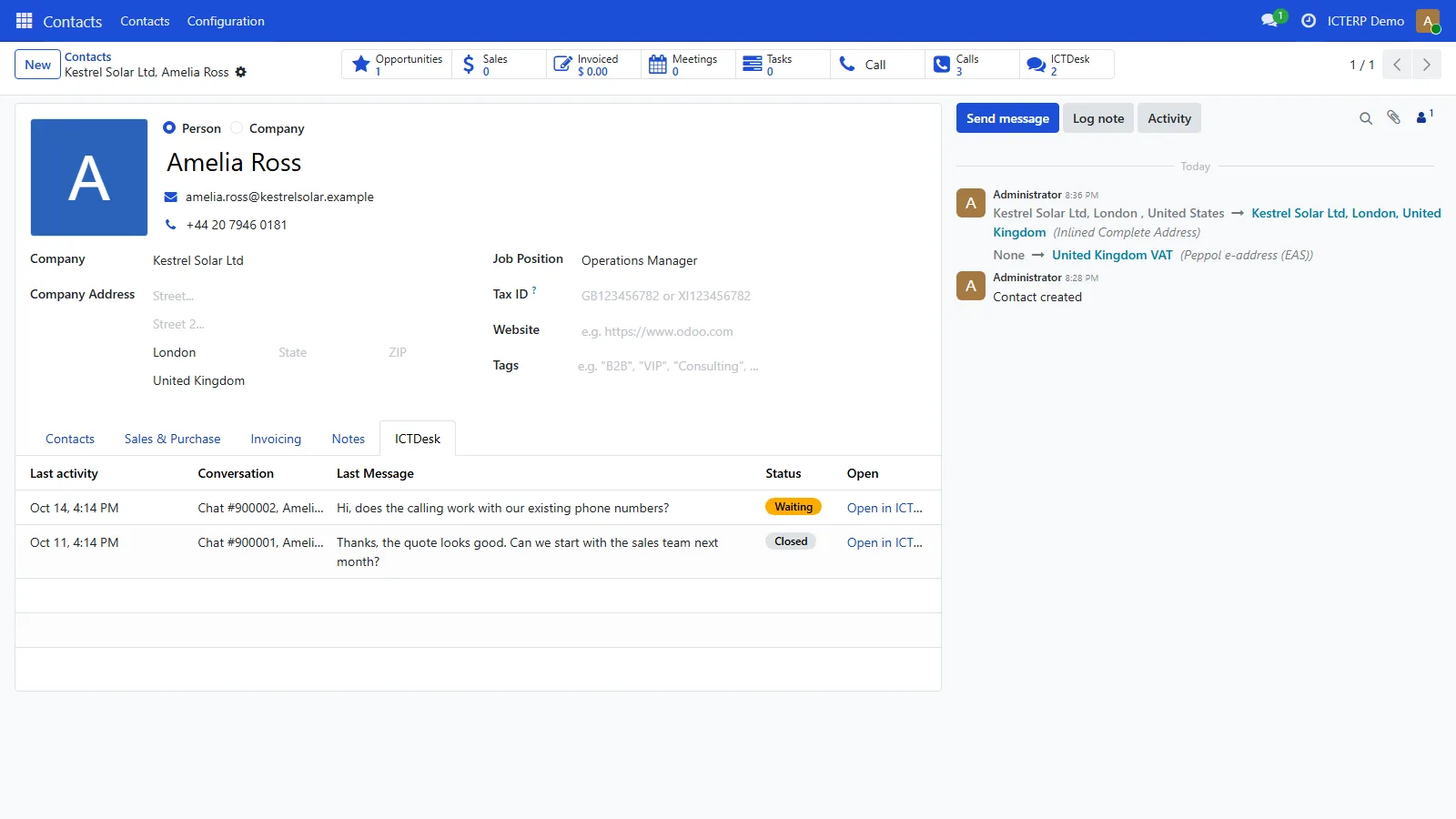
Where chats show
- An ICTDesk button and tab on contacts and leads, with each chat’s last activity, latest message and status.
- CRM, ICTDesk for every synced chat, with filters for chats that aren’t closed and chats that didn’t match anyone.
- Open in ICTDesk on each chat takes you to the chat history in ICTDesk.
How chats are matched
ICTERP matches a chat to a contact by the visitor’s email first, then by phone number. It links the chat to that contact’s newest open lead. Most visitors only leave an email, so ask your chat agents to collect it early in the conversation.
Set it up (administrator)
- In ICTDesk, create an agent just for ICTERP, for example “ICTERP Sync”. Don’t use a person who answers chats, because the sync shows this agent as online.
- In ICTERP, go to Settings, ICTDesk.
- Enter the ICTDesk address and the sync agent’s email and password.
- Press Test connection, then Sync now.
After that, ICTERP checks for new and updated chats every ten minutes. You can change the interval in the same settings.
Good to know
- Chats start on your website and are answered in ICTDesk. ICTERP shows them, but you don’t reply from ICTERP.
- Offline messages, left when no agent is online, go to your ICTDesk email address rather than into ICTERP.
- ICTDesk keeps the latest 50 closed chats available to the sync. Older closed chats are in ICTERP only if a sync saw them while they were recent, which is why the sync runs every few minutes.