Education has its own app in ICTERP. Set up the structure once, at the start of the year, and everything else (timetables, attendance, exams and fees) hangs off it.
1. Academic year and terms
- Go to Education, Configuration, Academic Year and press New.
- Enter the name and dates, then press Create Terms to split it into semesters or terms.
- For universities, open each term under Academic Term and fill in the Registration dates: when registration opens and closes, and the last days to drop and to withdraw.
2. Courses, batches and subjects
- Configuration, Subject Management, Subjects: add each subject with its code. Universities also set the credit hours and any prerequisites here.
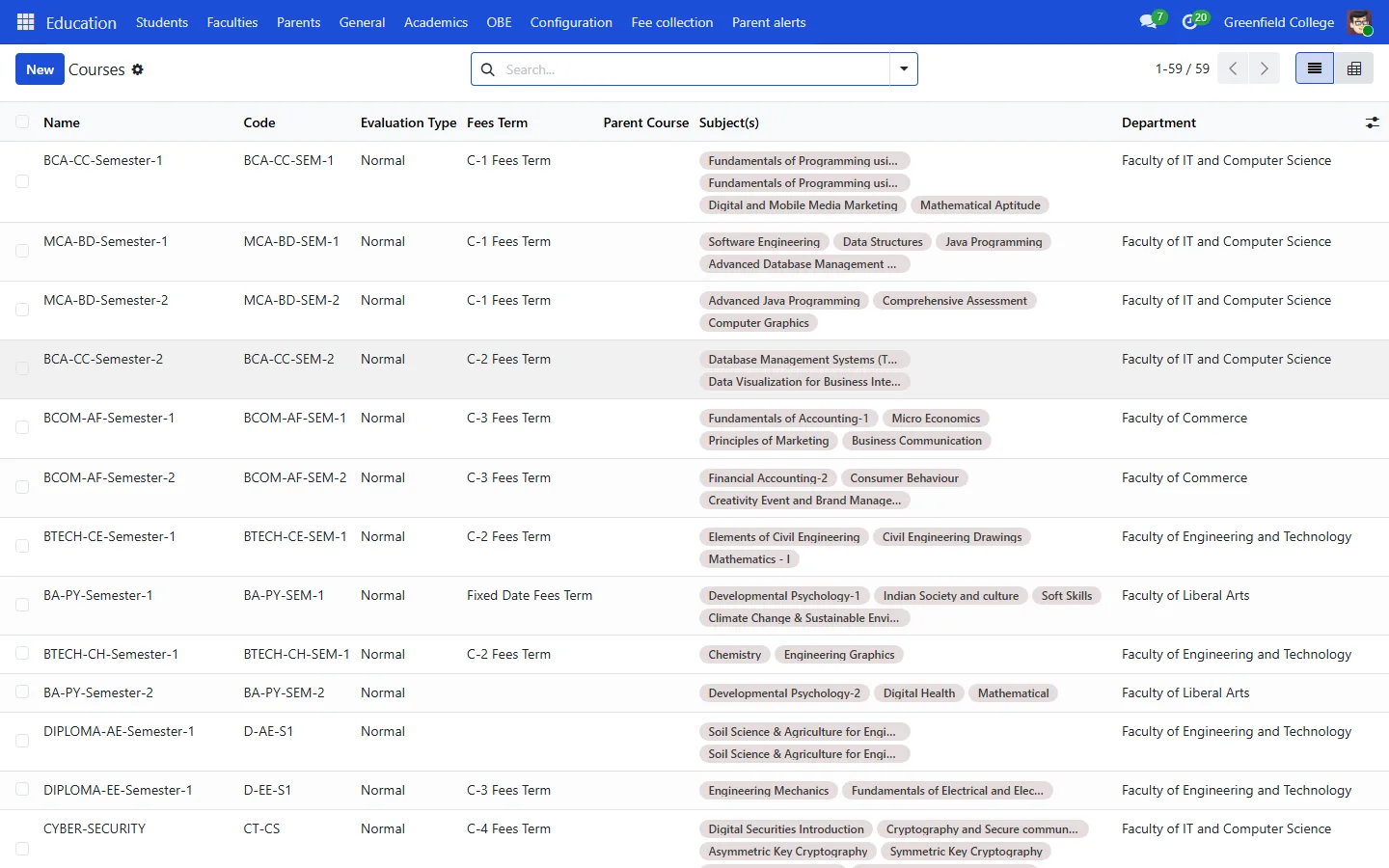
- Configuration, Course Management, Courses: a course is a class or programme, such as Grade 9 or BS Computer Science Semester 1. Add its subjects and fees term.
- Batches: a batch is one intake of a course, such as the 2026 morning section.
3. Students, teachers and parents
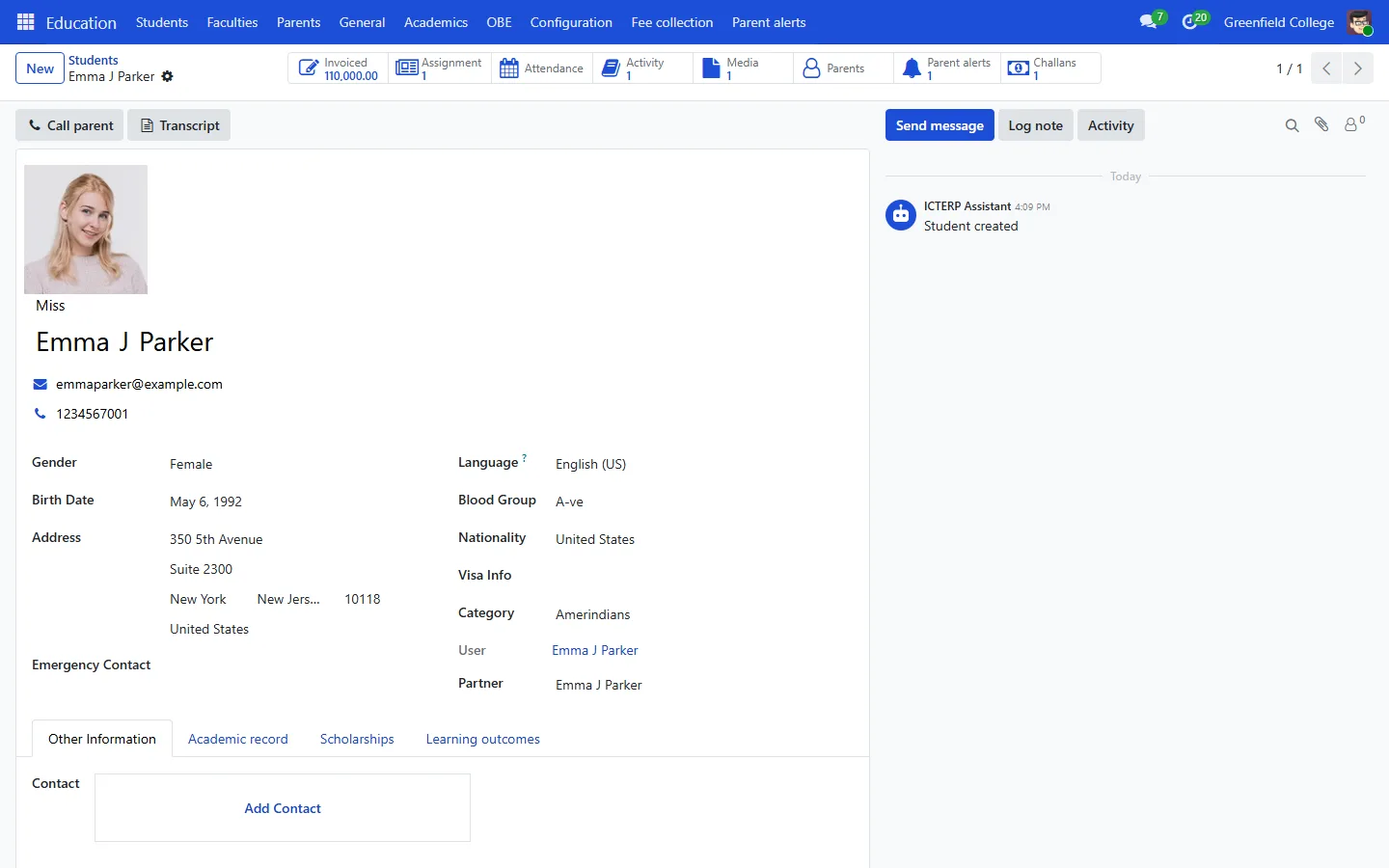
- Education, Students, New. Fill in the details and, under the student’s course details, the course and batch.
- Faculties: add teachers the same way.
- Parents: add a parent and link their children. One parent can have several children at the school.
4. Portal logins
To let students into the portal, select them in the Students list, open the Actions menu and choose Create Users. For a parent, open the parent and press Create Parent User. Then send each person the invitation from Settings, Users so they set their own password. See The student and parent portal.
Already have students in a spreadsheet? Every list in ICTERP can import a CSV or Excel file from the gear menu next to the list name, so you do not need to type them in one by one.