Timetable
- Open the Timetable app. Under Configuration, add your period timings once.
- Use Timetable, Generate Timetable to create the sessions for a batch: pick the course, batch and dates, add the periods on each weekday tab with the subject, teacher and room, then press Proceed.
- The sessions appear in the calendar. Drag a session to move it.
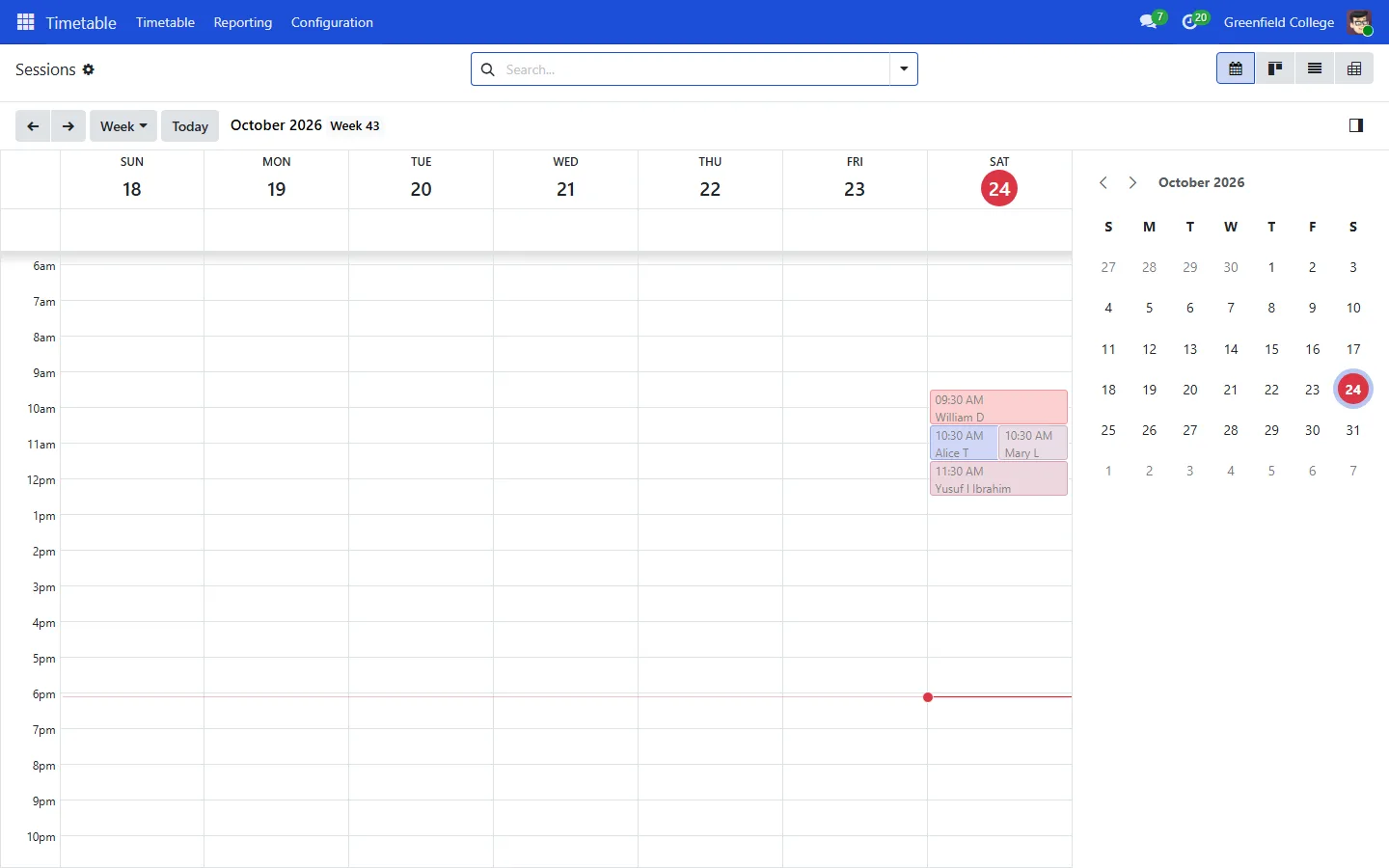
Students and parents see the same week in the portal, with the teacher and room for each class.
Attendance
- Open the Attendance app. Create a register for each batch and subject under Attendance, Registers.
- For each class, create a sheet under Sheets, press Attendance Start and tick Present, Late or Absent for each student.
- Press Attendance Taken when you are done.
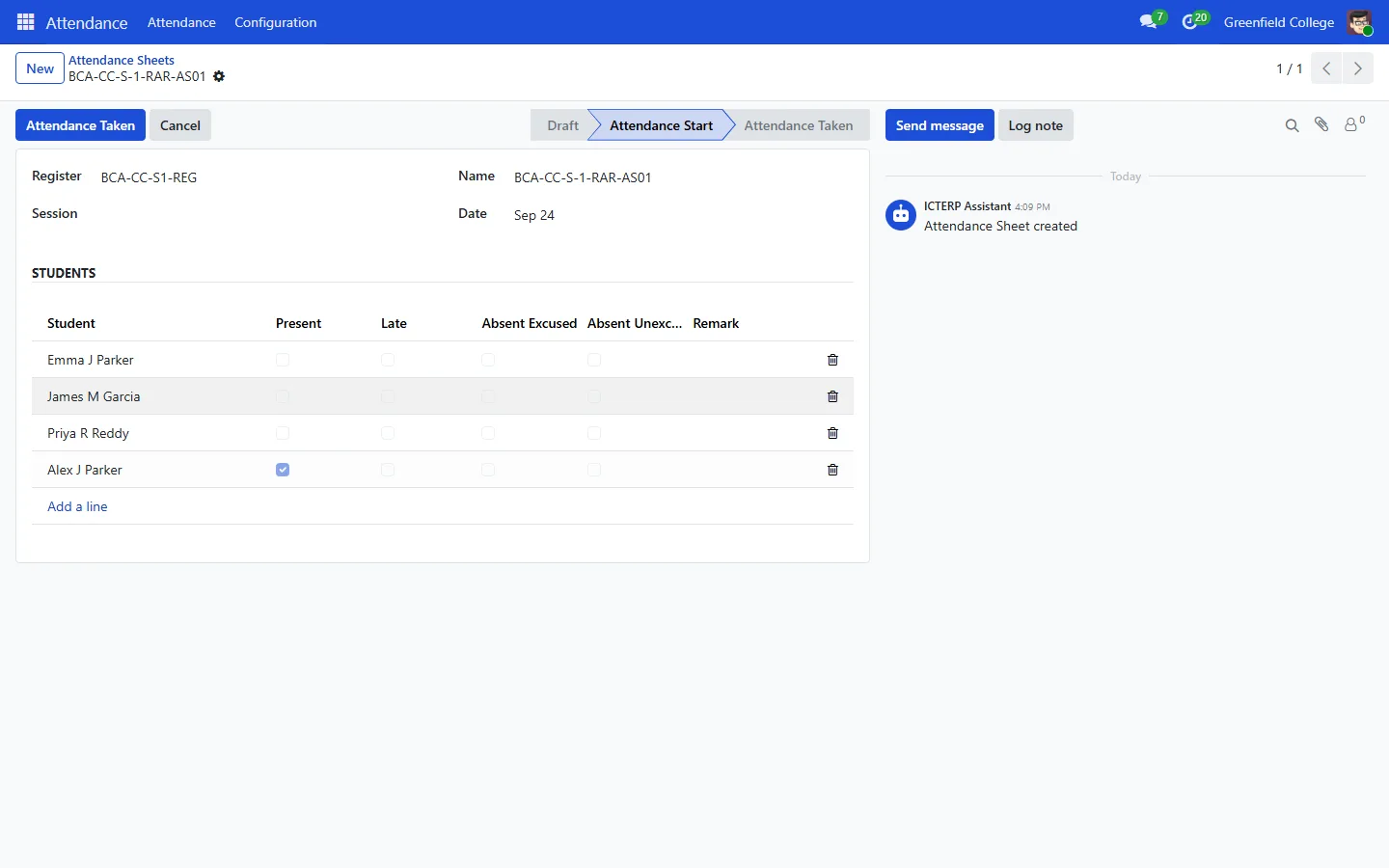
When a sheet is taken, ICTERP queues an alert for the parents of every absent student. If an absence campaign is set in Settings, the parent gets an SMS or a call within a few minutes. See The student and parent portal.