1. Offer the courses
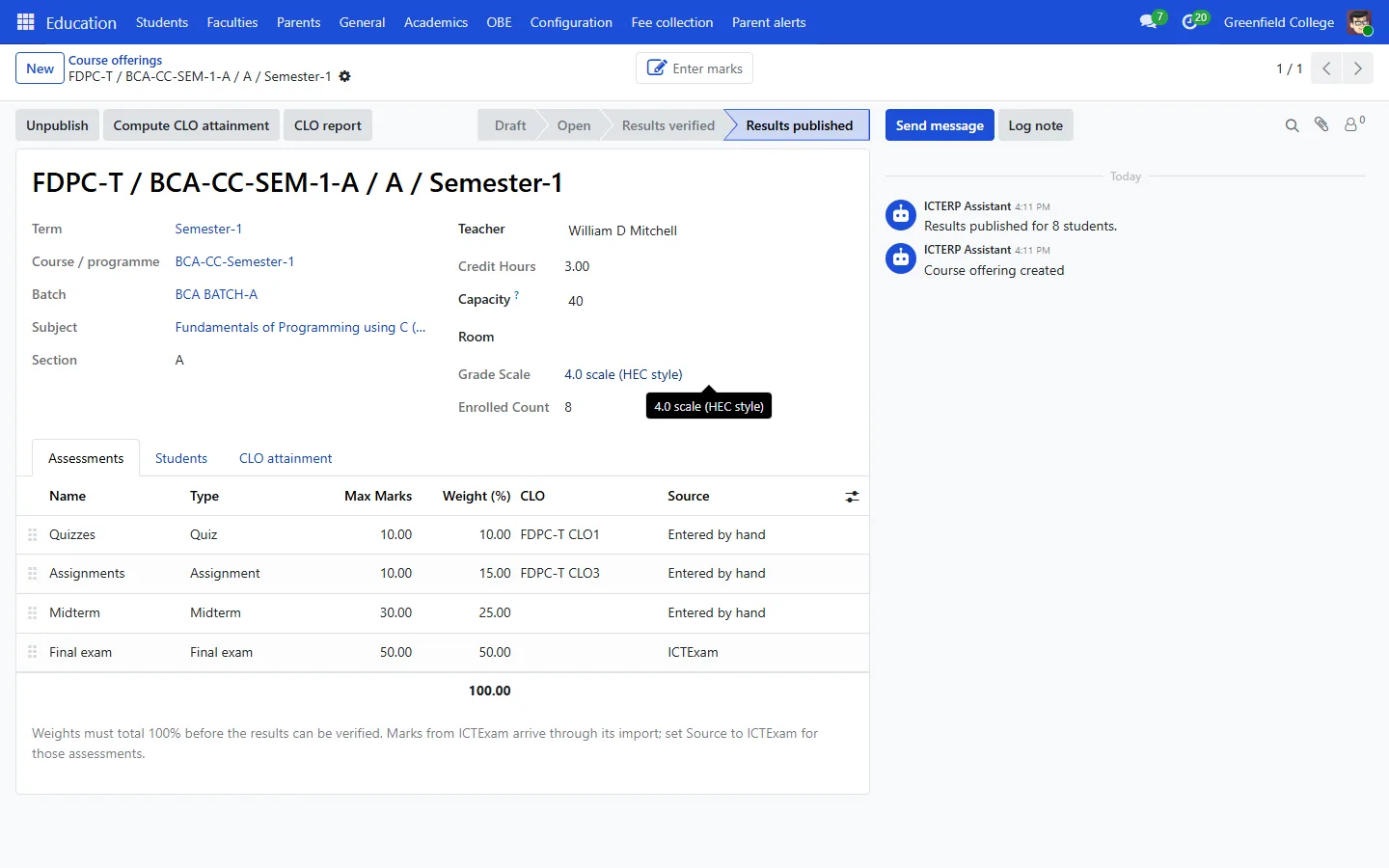
- Go to Education, Academics, Course offerings and press New.
- Pick the term, programme, batch and subject. Set the section, teacher, credit hours, capacity and grade scale.
- On the Assessments tab, add the parts of the grade (quizzes, assignments, midterm, final) with their maximum marks and weight. Weights must add up to 100%.
- Press Open for registration.
2. Register students
Press Enrol students to register a whole batch, or add one registration at a time under Course registrations. ICTERP checks that registration is open, there is a seat, the prerequisites are passed, the student is not already in the course and the term’s credit load is not exceeded.
Students can be dropped (removed from the transcript) until the drop deadline, and withdrawn (shown as W, not counted in the GPA) until the withdraw deadline. Both buttons are on the registration.
3. Enter marks
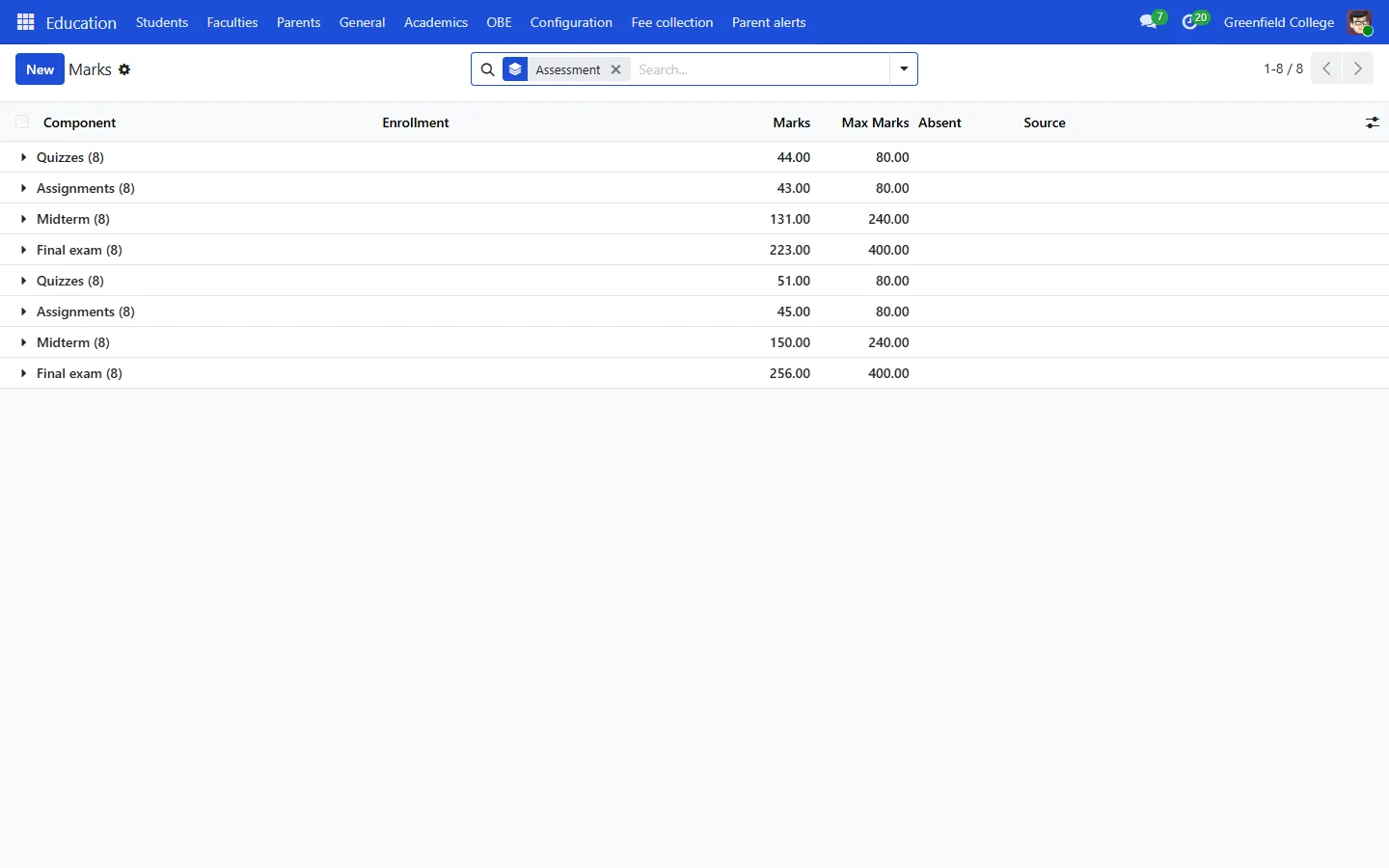
Press Enter marks on the offering. Teachers see only their own courses. An assessment can be split into questions, for example Q1 and Q2 of the final, and marks are entered per question.
4. Verify and publish
- Press Verify results. Marks are locked from this point.
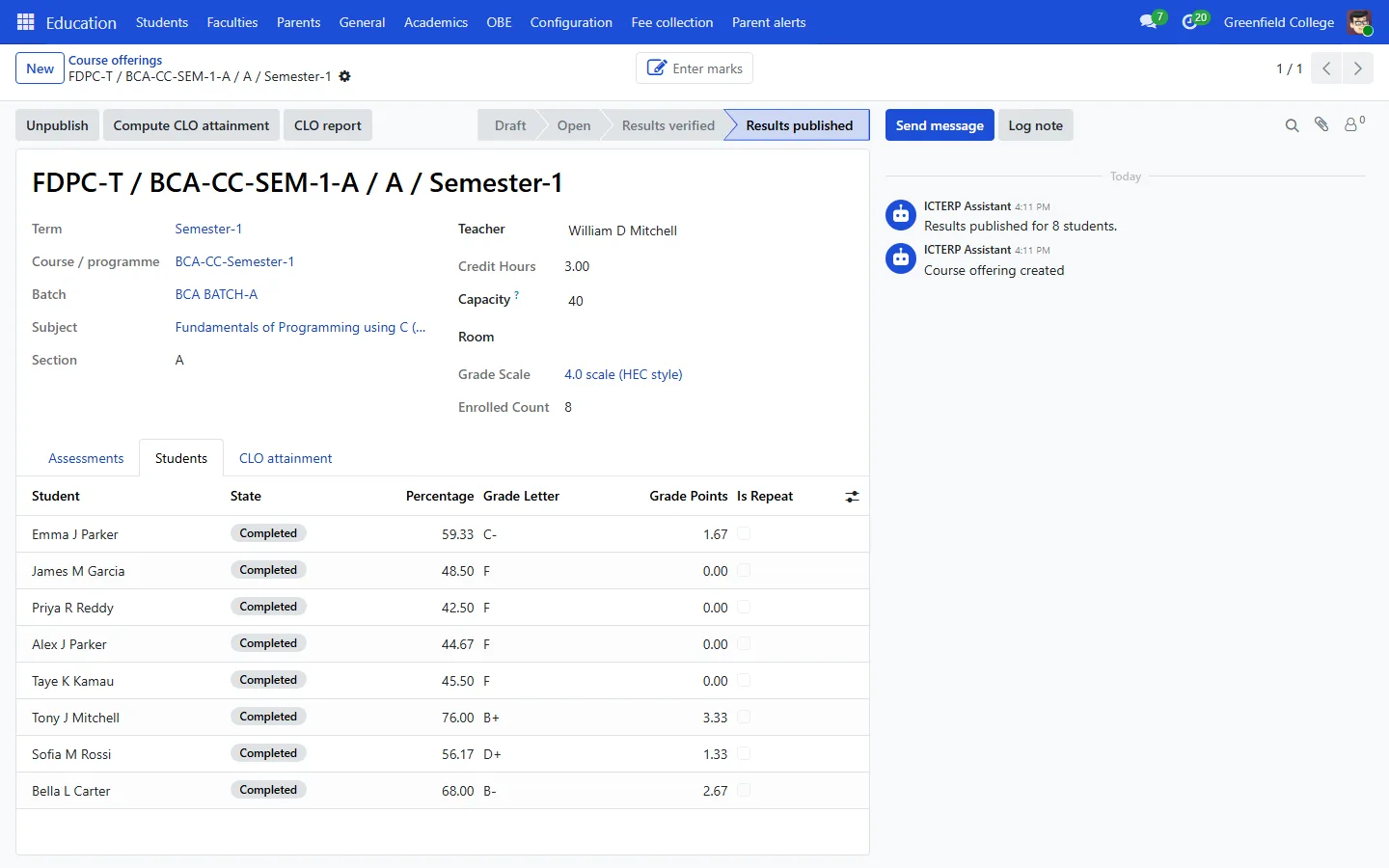
- Press Publish results. Grades, GPA and CGPA appear in the portal and parents get a results alert.
- Need a correction? Use Change grade on the registration. It asks for a reason and keeps a record. Unpublish takes the results back down.
GPA, standing and transcripts
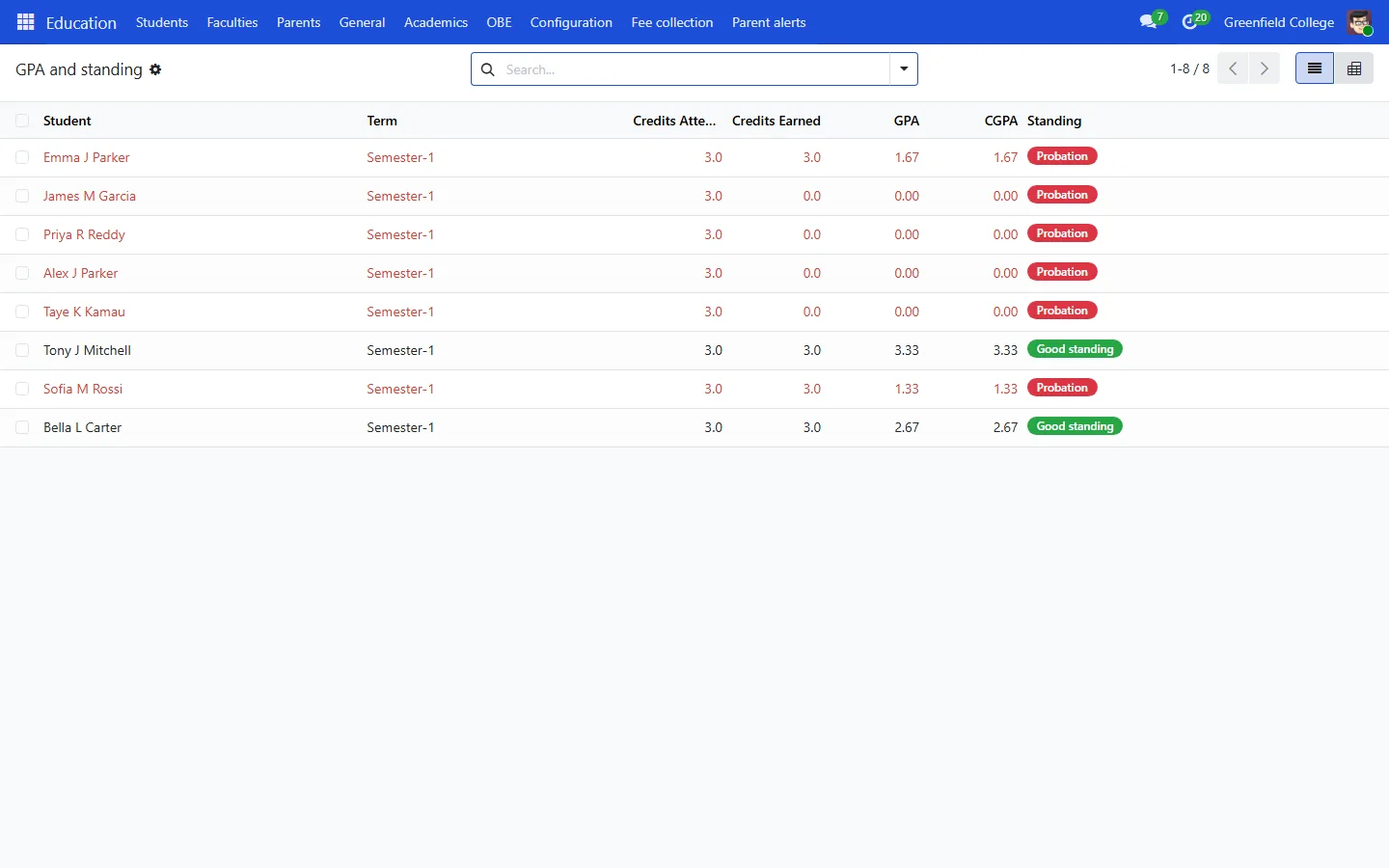
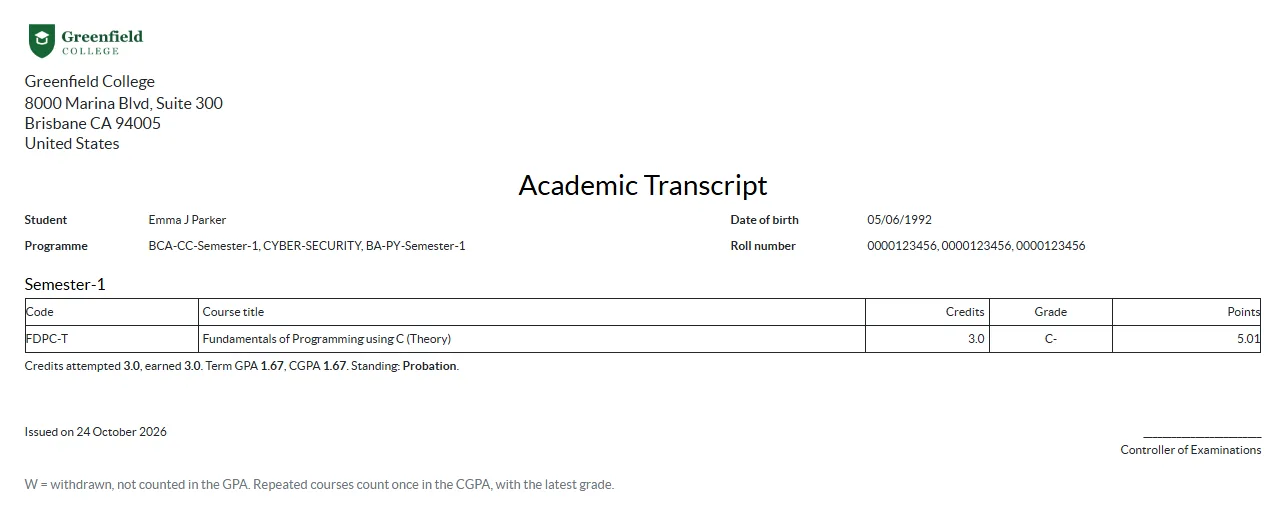
GPA and standing lists every student’s term GPA, CGPA and standing. If a course is repeated, only the latest attempt counts in the CGPA. The probation and suspension thresholds are in Settings, under Academic standing (GPA).
Press Transcript on a student to print the transcript PDF. Students download the same transcript from the portal.
The grade scale is under Academics, Grade scales. ICTERP ships with a 4.0 scale; change the bands to match your institution before you publish anything.