What they see
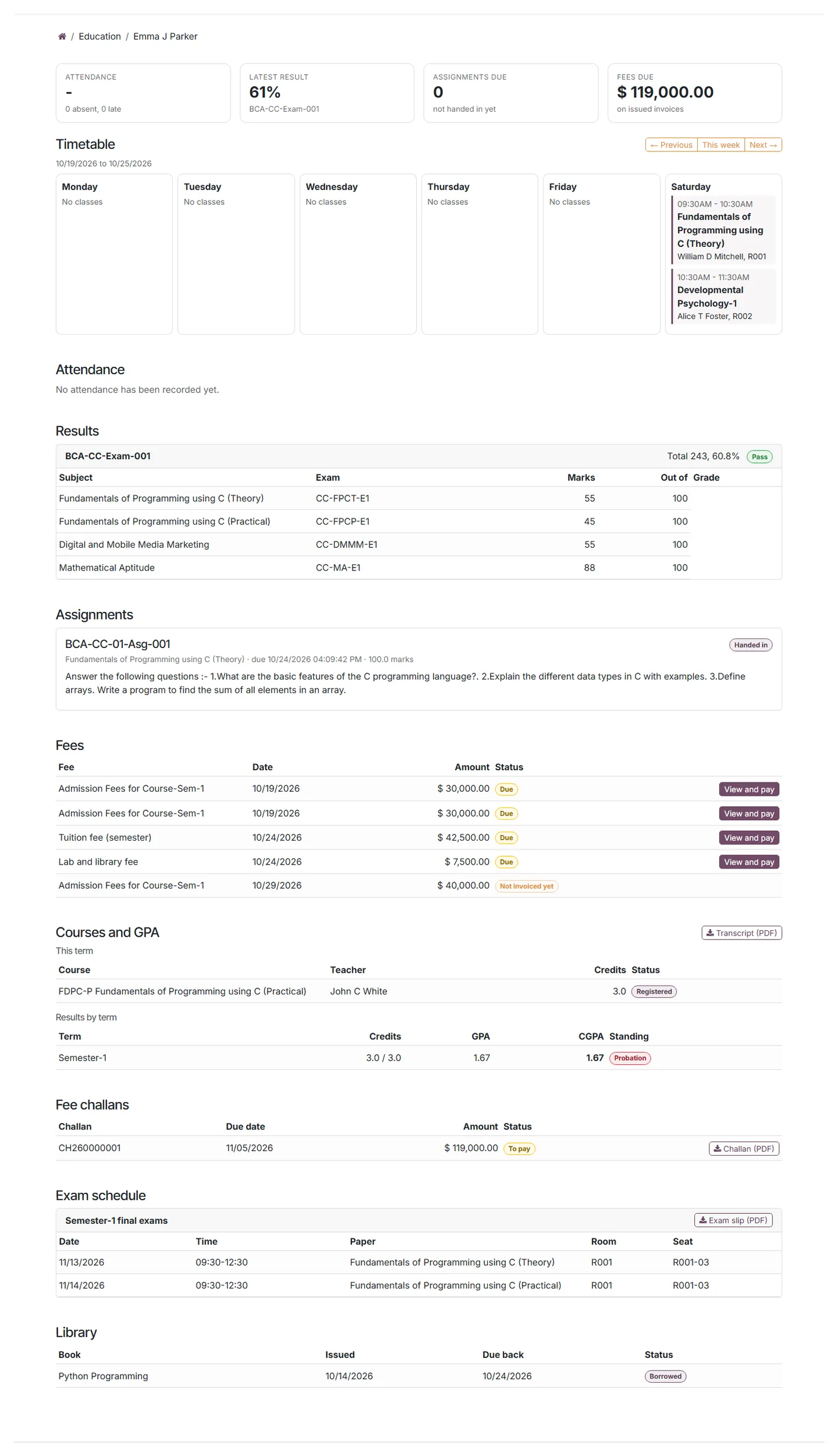
Students and parents sign in at your ICTERP address and open Education from their account page. Parents with more than one child pick a child first. Each child’s page shows:
- attendance and the latest result at the top, with fees due
- this week’s timetable
- results, assignments (students can hand them in) and fees with a pay link
- courses, GPA and a Transcript (PDF) download
- fee challans to download
- the exam schedule with room, seat and Exam slip (PDF)
- library books on loan
To give someone a login, see step 4 of Setting up your school or college.
Parent alerts by SMS or call
Alerts go out through ICTContact. Each kind of alert uses its own ICTContact campaign: an SMS campaign texts the parent, a voice campaign rings them with a recorded message.
- In ICTContact, create a campaign for each alert you want: absence, results and overdue fees. The SMS text can include the child’s name and the details, for example
[contact:custom2] was marked absent. [contact:custom3]. - In ICTERP, go to Settings, ICTContact, Parent alerts (Education) and enter the campaign IDs. Leave one empty to switch that alert off. Set how many days after the due date fee reminders start.
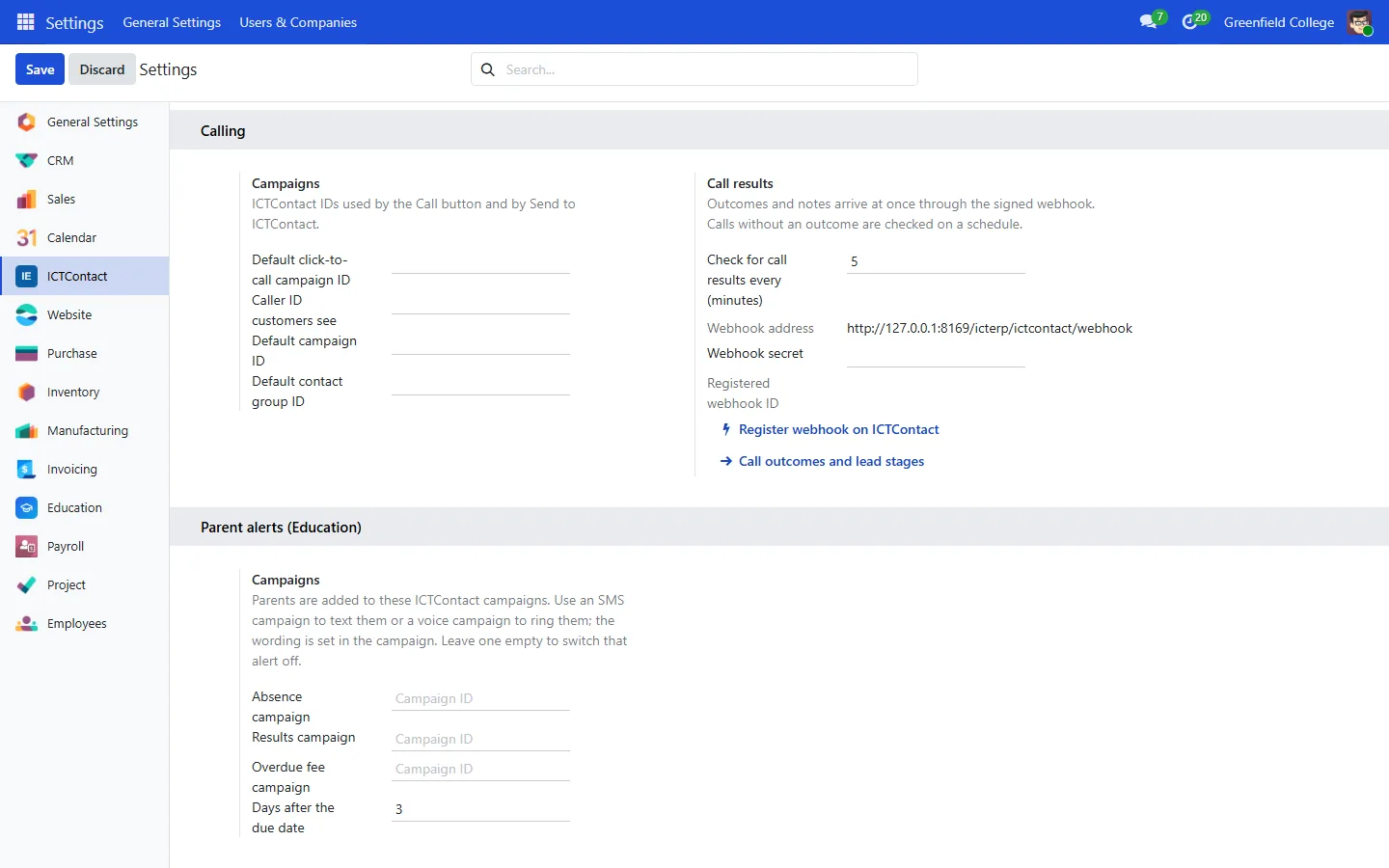
Alerts are queued under Education, Parent alerts and sent every few minutes, so a busy line never slows teachers down. Each parent gets one alert per event, and fee reminders go out at most once a week per invoice. Send now pushes the queue at once.
Student records also have a Call parent button, and parent records a Call button. Both ring the parent through ICTContact, the same way the Call button works on a lead.